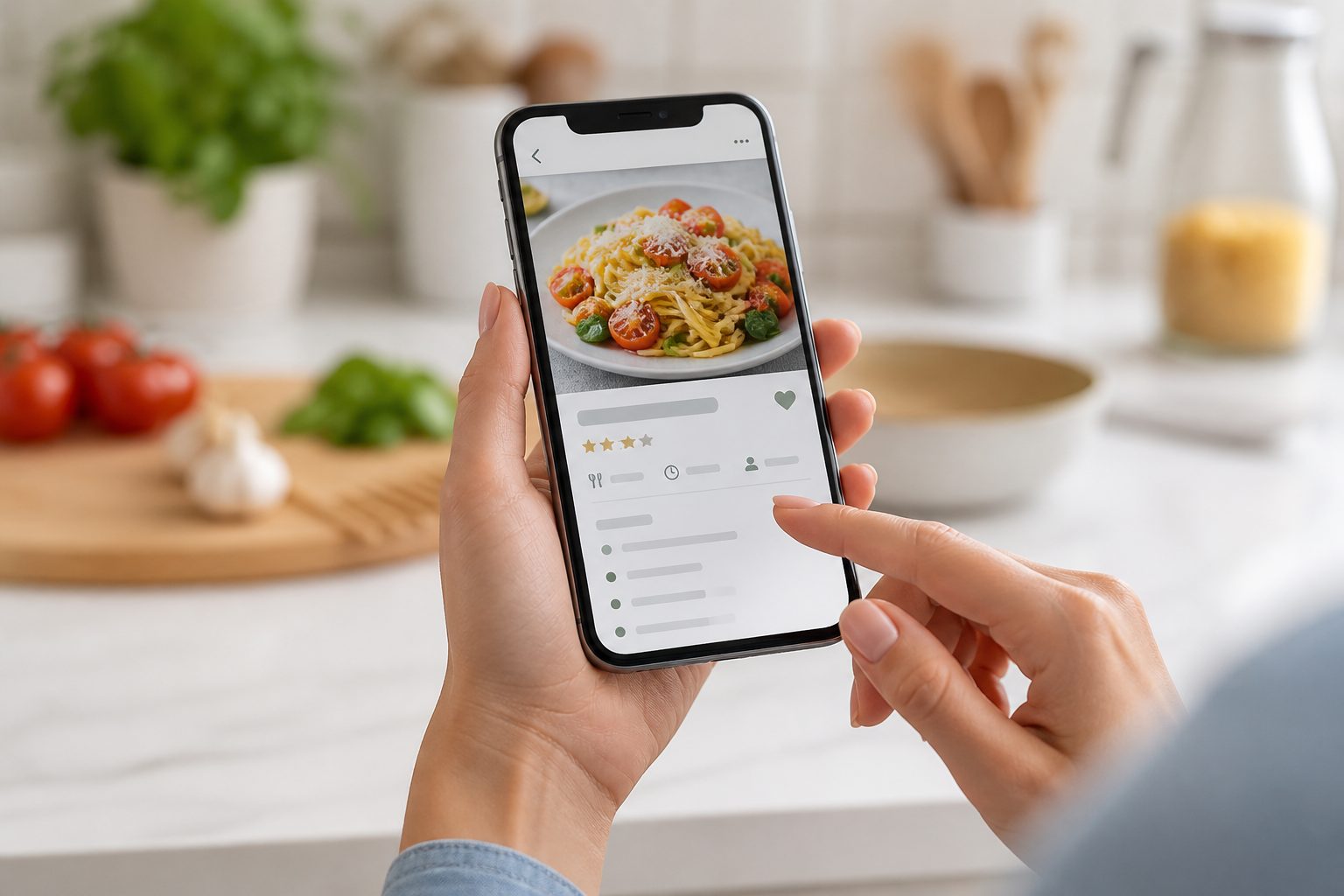
The iPhone recipe sprawl problem
Recipes on an iPhone tend to end up scattered across whatever app happened to be open when you saved them: screenshots piling up in Photos, pasted links and half-typed notes in the Notes app, a Reading List full of Safari tabs that were never actually read, a Pinterest board, an Instagram Collection, and often one or two recipe apps downloaded once, used for a week, and forgotten.
None of these were designed to work together, so the same recipe might exist in three places at once, or nowhere at all by the time you go looking for it.
What actually works natively on iPhone
Photos has a text-recognition feature (Live Text) that lets you select and copy text directly out of a photo, including a screenshot. That is genuinely useful for finding a specific screenshot again by searching a distinctive word, or for copying an ingredient list out of an image without retyping it by hand.
What it does not do is turn that image into a structured recipe. There is no separation into ingredients, method, serves, and timing, no dietary tagging, and no connection to a meal plan or shopping list. Live Text helps you retrieve text from a photo. It does not organise a recipe collection.
Where Kyura fits on iPhone today
To be direct about the current state: there is no dedicated Kyura app in the App Store yet. The way to use Kyura on an iPhone today is the web app at my.kyura.app, opened in Safari like any other website.
This page will be updated with an official App Store link once a native iOS app is available. Until then, the web app carries the same core workflow: capture, review, organise, plan, and shop.
Using the web app well on a phone screen
Uploading a screenshot from Photos through Safari works the same as it would through a native app's photo picker. Reviewing an extracted draft on a smaller screen is easier if you keep the original image open in a second tab or Photos itself, so you can compare the two side by side rather than relying on memory.
Using Safari's Add to Home Screen option turns the web app into an icon that behaves much like any other app icon, which removes the friction of typing a web address each time.
Moving between an iPhone and a laptop or iPad
Because the web app runs in a browser rather than as an installed iOS app, the same account works the same way on an iPhone, an iPad, or a laptop, without needing a separate download for each device. That is useful in practice: capture a screenshot on the phone where it was saved, then do the slower review and tagging work later on a laptop where typing corrections is easier.
Building a weekly meal plan or shopping list is often more comfortable on a larger screen too, even if most of the day-to-day capturing happens on the phone in the kitchen or on the couch.
A simple consolidation plan
Rather than trying to migrate the entire camera roll and every Note in one sitting, work backward from something concrete: the meals planned for the coming week. Bring across only the recipes needed for that plan, then repeat the process the following week. The collection grows around what actually gets cooked, instead of around what happened to be saved at some point.
Keeping the camera roll from refilling
Once a screenshot has been reviewed and saved as a proper recipe, delete or archive the original image rather than leaving a duplicate sitting in Photos indefinitely. A dedicated album for new recipe screenshots, checked and cleared regularly, also helps catch new saves before they scatter across an entire camera roll.
What changes if a native app arrives
An iOS app is not part of the current version, and there is no fixed date to point to here. If and when one arrives, the workflow described in this guide does not change: capture, review, organise, plan, and shop stay the same. What changes is only the entry point, from a browser tab to an app icon.
Common questions
Keep the limits clear
Is there a Kyura app in the App Store?
Not yet. Use the web app at my.kyura.app in Safari for now. This page will be updated when a native iOS app is available.
Does the web app work as well as a native app would?
It runs in the browser rather than through the App Store, so there is no offline-first native app behaviour to expect yet. The core capture, review, and save workflow is the same either way.
Can I add the Kyura web app to my Home Screen?
Yes. Safari's Add to Home Screen option gives the web app an icon that opens like any other app.